Load test your app
using a real browser session
Record your browser traffic, save it as a HAR file — filtering to XHR/API calls only — then upload it to ProdLoad to replay that exact session at scale with hundreds or thousands of virtual users.
Record real traffic
Use your browser's built-in DevTools to capture every XHR and Fetch request your app makes — no agents or proxies needed.
Import in one click
Import the HAR file in the ProdLoad Flow Builder. It parses every request, URL, headers, and body automatically.
Get real metrics
Run the test with up to your plan's virtual user limit and get live throughput, P90/P95, and error rate reports.
What is a HAR file?
A HAR (HTTP Archive) file is a JSON-format log of all HTTP traffic recorded in a browser session. It captures every request — URL, method, headers, request body, response status, timing, and more. ProdLoad reads it and converts each XHR/API call into a test step.
XHR and fetch requests.Capture XHR in Chrome or Edge
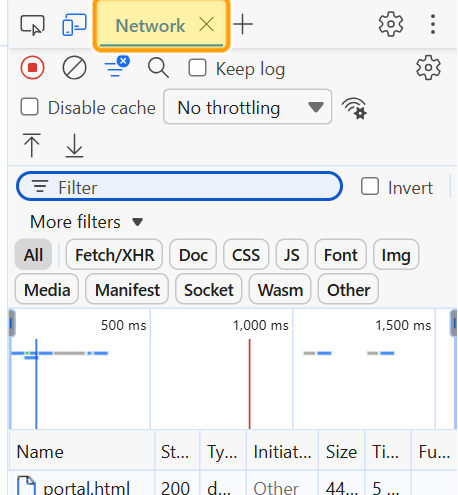
Chrome and Edge share the same DevTools, so the steps are identical. The screenshots are from Chrome; open the Edge panel under each one to see it there.
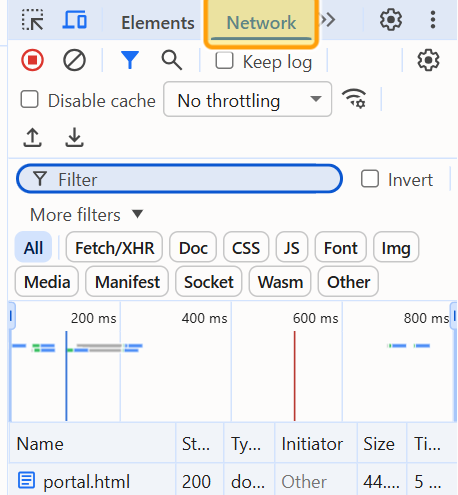
Open DevTools → Network tab
Press F12 (Windows / Linux) or ⌥ ⌘ I (Mac), then click the Network tab. Tick Keep log so requests survive page navigations, and make sure the red record button is on.
See the same step in Microsoft Edge
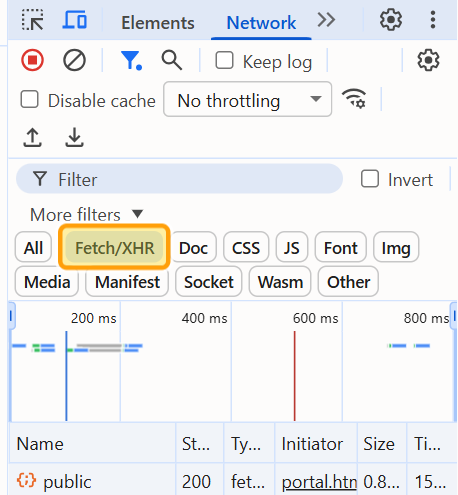
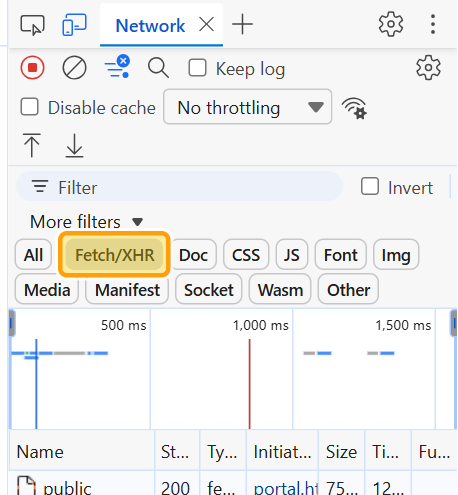
Filter to Fetch/XHR only
In the filter bar click Fetch/XHR. This hides images, fonts, CSS and scripts and leaves only the API and data requests.
See the same step in Microsoft Edge
-domain:cdn.example.com to exclude a domain.Perform the user journey you want to test
Navigate through your app, log in, click through pages, submit forms — whatever workflow you want to load test. Every request is recorded live.
Authorization and cookies.Export as HAR (with sensitive data)
Click the download icon ↓ (Export HAR…) in the Network toolbar — highlighted below. If Chrome or Edge offers a choice, pick Export HAR (with sensitive data), then save the file as my-test.har.
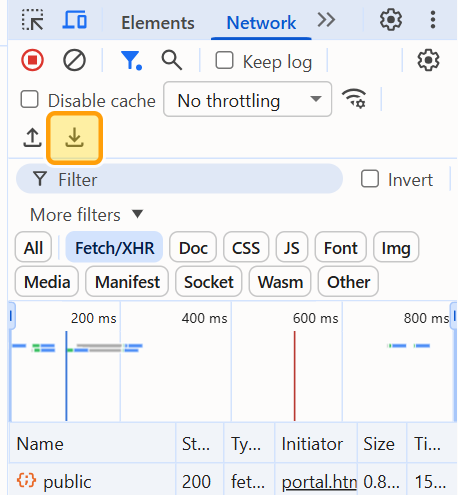
See the same step in Microsoft Edge
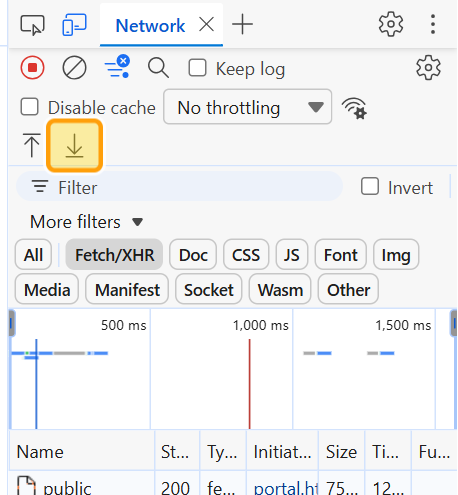
Authorization headers. ProdLoad needs them to replay a logged-in session. On older browser versions, right-click the request list and choose Save all as HAR with content instead.Capture XHR in Firefox
Open DevTools → Network
Press F12, click Network. Press Ctrl+R or reload to start a fresh recording.
Filter to XHR only
In the filter bar click XHR. Firefox does not have a combined Fetch/XHR button — you may also click Others if your app uses fetch().
Save HAR
Right-click the request list → Save All As HAR, or click the gear icon ⚙ in the toolbar → Save All As HAR.
Capture XHR in Safari
Enable Developer menu
Safari → Preferences → Advanced → check Show Develop menu in menu bar.
Open Web Inspector → Network
Develop → Show Web Inspector → click Network tab.
Filter and export
Use the XHR filter button. When done, click the Export button (down-arrow icon) in the toolbar to save as HAR.
Keeping only XHR requests
Even after filtering in DevTools, your HAR may contain requests you don't want to replay. Here's how to identify and remove them before uploading.
| Request type | Include? | Why |
|---|---|---|
XHR / fetch /api/* | ✓ Yes | Your actual API — this is what you want to stress-test. |
| JS / CSS / fonts | ✗ Skip | Served from CDN, not affected by server load. |
| Images / SVG | ✗ Skip | Static assets. They skew timings and inflate VU cost. |
| Analytics / tracking | ✗ Skip | Third-party endpoints — test results will always be 200. |
| WebSocket handshake | Optional | ProdLoad supports WS but handle separately via Flow Builder. |
-domain:google-analytics.com -domain:cdn.example.com in the filter box to exclude specific domains before exporting.Import your HAR file
Once you have a clean HAR file, importing it into ProdLoad takes a few clicks. ProdLoad then analyses the recording and builds a runnable flow.
Go to Flow Builder
In the left sidebar click Flow Builder, or open /flow-builder. You start with an empty flow.
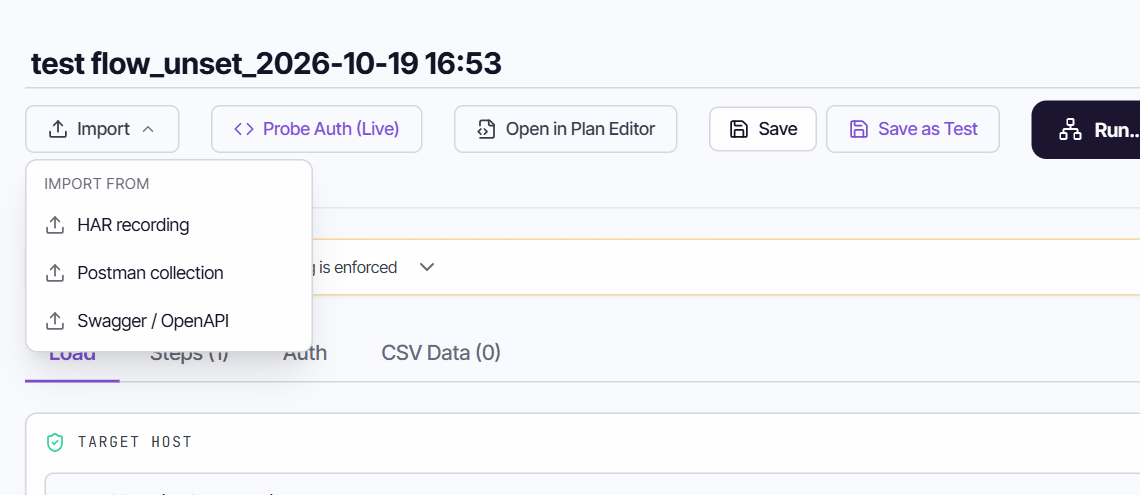
Import → HAR recording
Click the Import button and choose HAR recording. (The same menu also imports a Postman collection or a Swagger / OpenAPI file.) Pick the .har file you saved from DevTools.
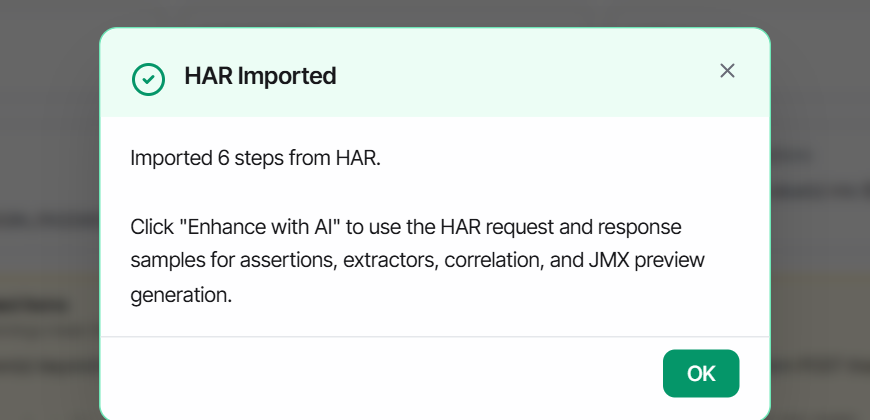
.js .css .png .woff etc.) and third-party calls.Read the HAR Analysis Review
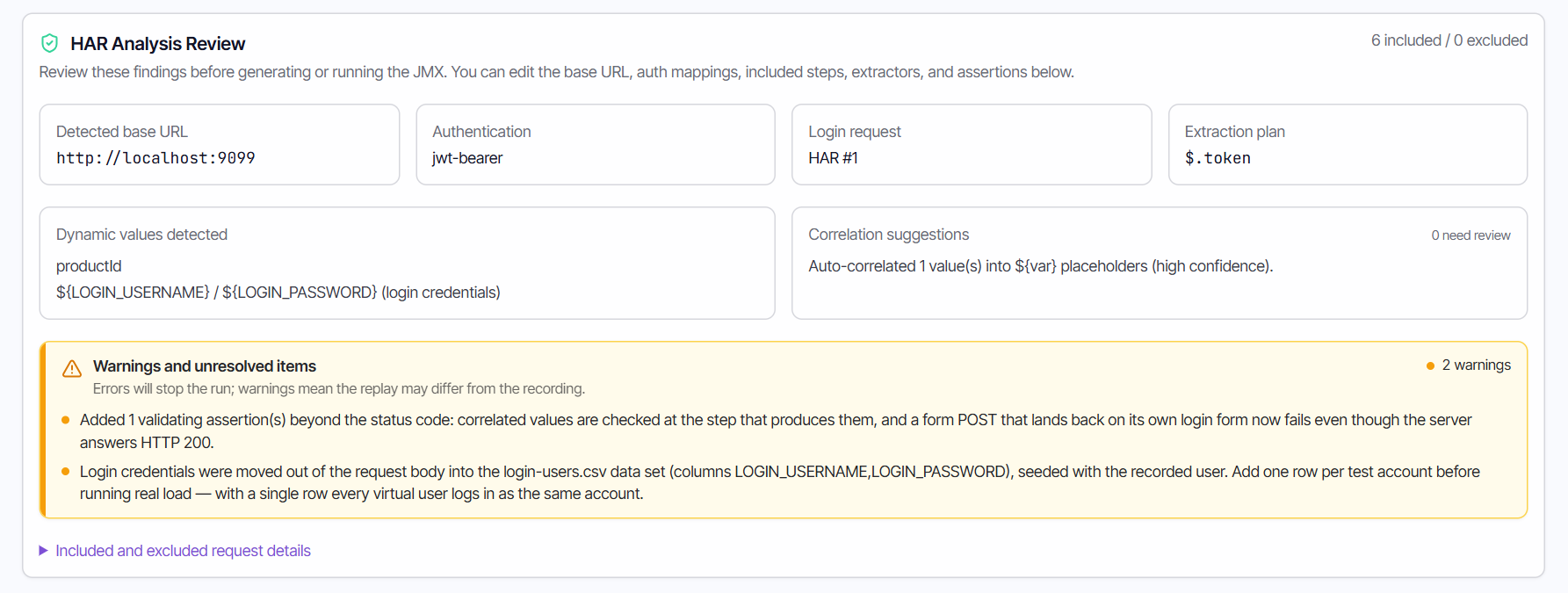
Before anything runs, ProdLoad summarises what it found: the detected base URL, how the app authenticates (for example a bearer token), which request is the login, the values it will extract from responses, and any dynamic values it correlated into ${variables}.
Review the imported steps
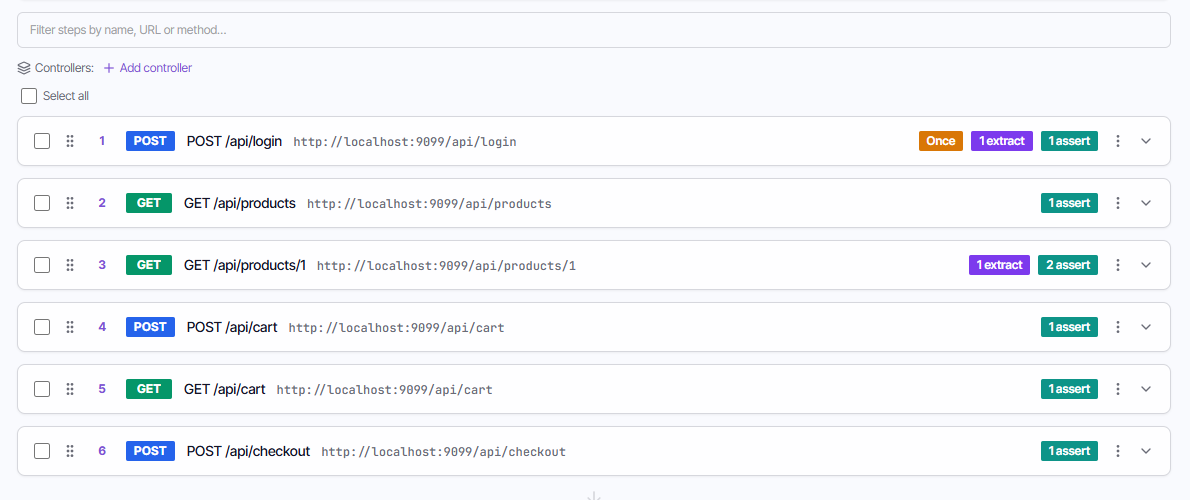
Each API call becomes a numbered step on the Steps tab. Badges show what ProdLoad added: Once (the login runs once per virtual user), extract (a value captured for later steps) and assert (a check on the response). You can reorder, edit, exclude or delete steps, and add your own assertions.
Register and verify your target host
ProdLoad only generates load against hosts you have registered and proven you control. This protects other people’s servers — and it is the most common reason a first run will not start.
Open Hosts → Add Host
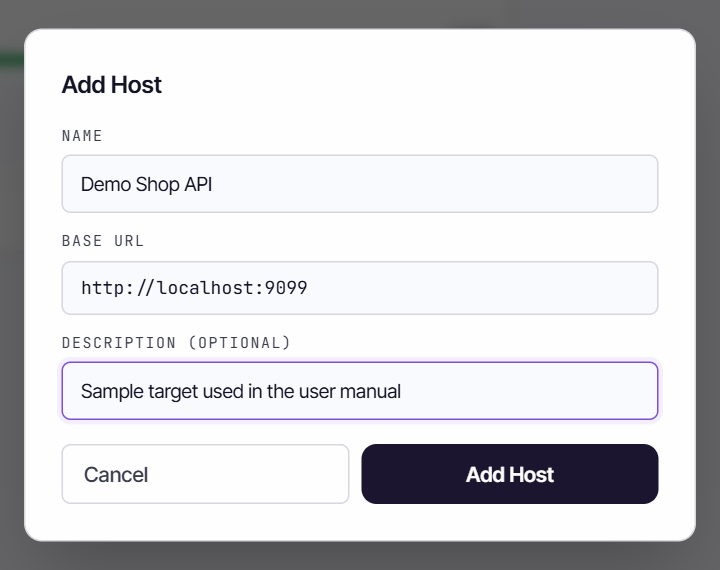
Click Hosts in the sidebar, then Add Host. Give it a name, the base URL (scheme, host and port, for example https://api.example.com) and an optional description.
Verify ownership
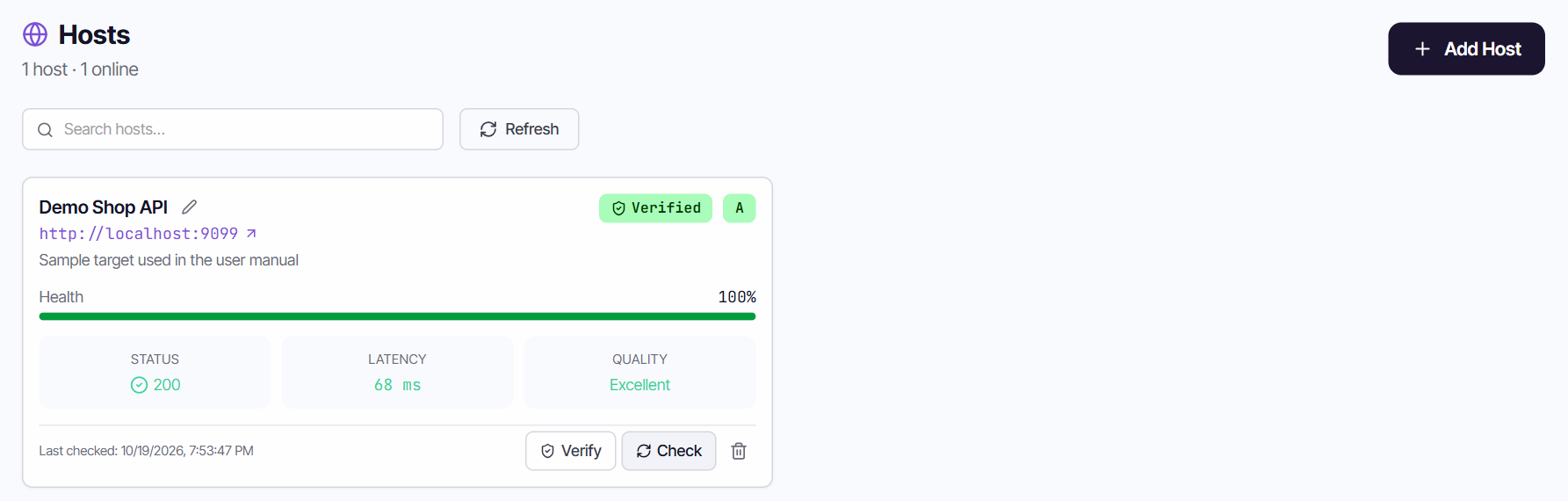
On the host card click Verify and follow the instructions shown. Once confirmed the card shows a green Verified badge. Check re-tests that the host is reachable and refreshes its health, status code and latency.
Configure your load test
On the Load tab choose the target host and set the virtual user count, ramp-up time and test duration. These control how hard your server gets hit.
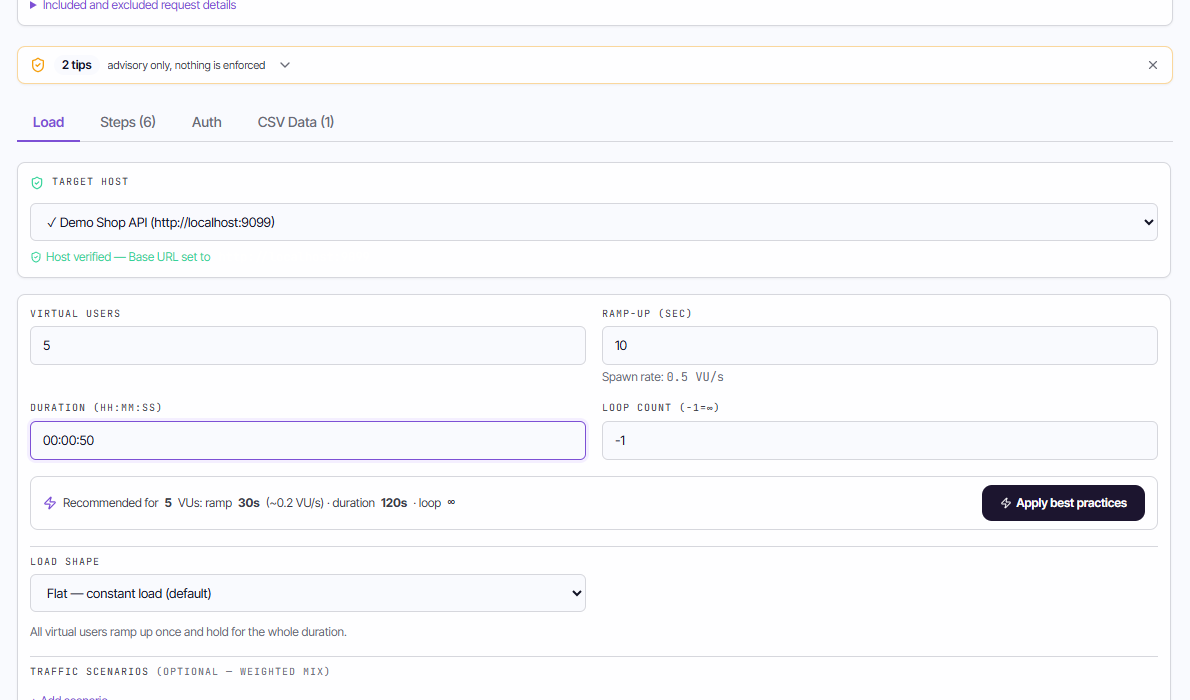
| Setting | Description | Recommendation |
|---|---|---|
| Target host | The verified host the flow runs against. | Pick the host you registered in Step 7. |
| Virtual Users (VUs) | Concurrent simulated users. Each VU runs the full step sequence in a loop. | Start low (10–20), ramp up in later runs. |
| Ramp-up (sec) | How long it takes to reach the full VU count from 0. The spawn rate is shown under the field. | Use 30–60 s to avoid an instant spike. Too short = thundering herd. |
| Duration (hh:mm:ss) | Total test run time. After ramp-up, all VUs keep running until it is reached. | At least 3× the ramp-up so you get steady-state data. |
| Loop count | How many times each VU repeats the flow. -1 means keep looping until the duration ends. | Leave at -1 for duration-based tests. |
| Load shape | Flat holds a constant load; other shapes vary it over time. | Flat for the first run. |
Run the test & monitor live
Click Run… in the Flow Builder toolbar. ProdLoad starts the test and takes you to the live monitor, where results stream in as they happen.
Click Run… and choose where to run
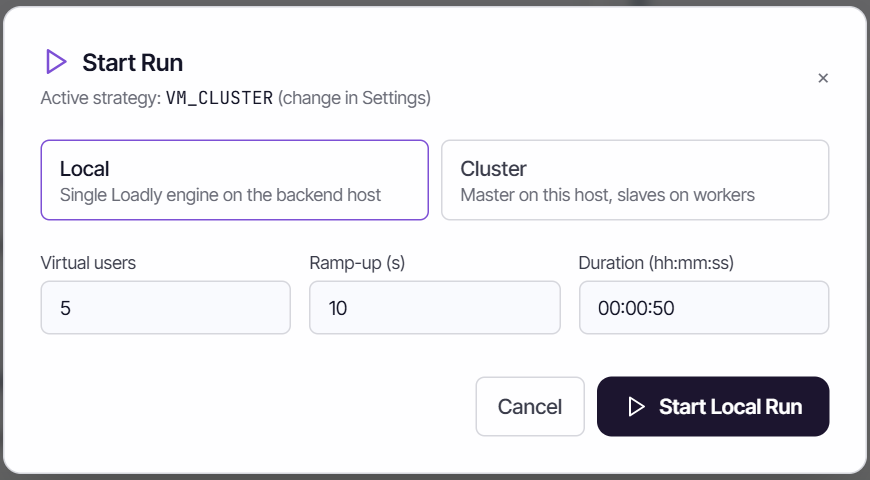
The Start Run dialog asks where to run. Local uses a single ProdLoad engine on the backend host. Cluster runs a master with slaves on your registered workers (the platform is chosen by your administrator in Settings). Confirm the virtual users, ramp-up and duration, then click Start Local Run (or Start Cluster Run).
Watch the live monitor
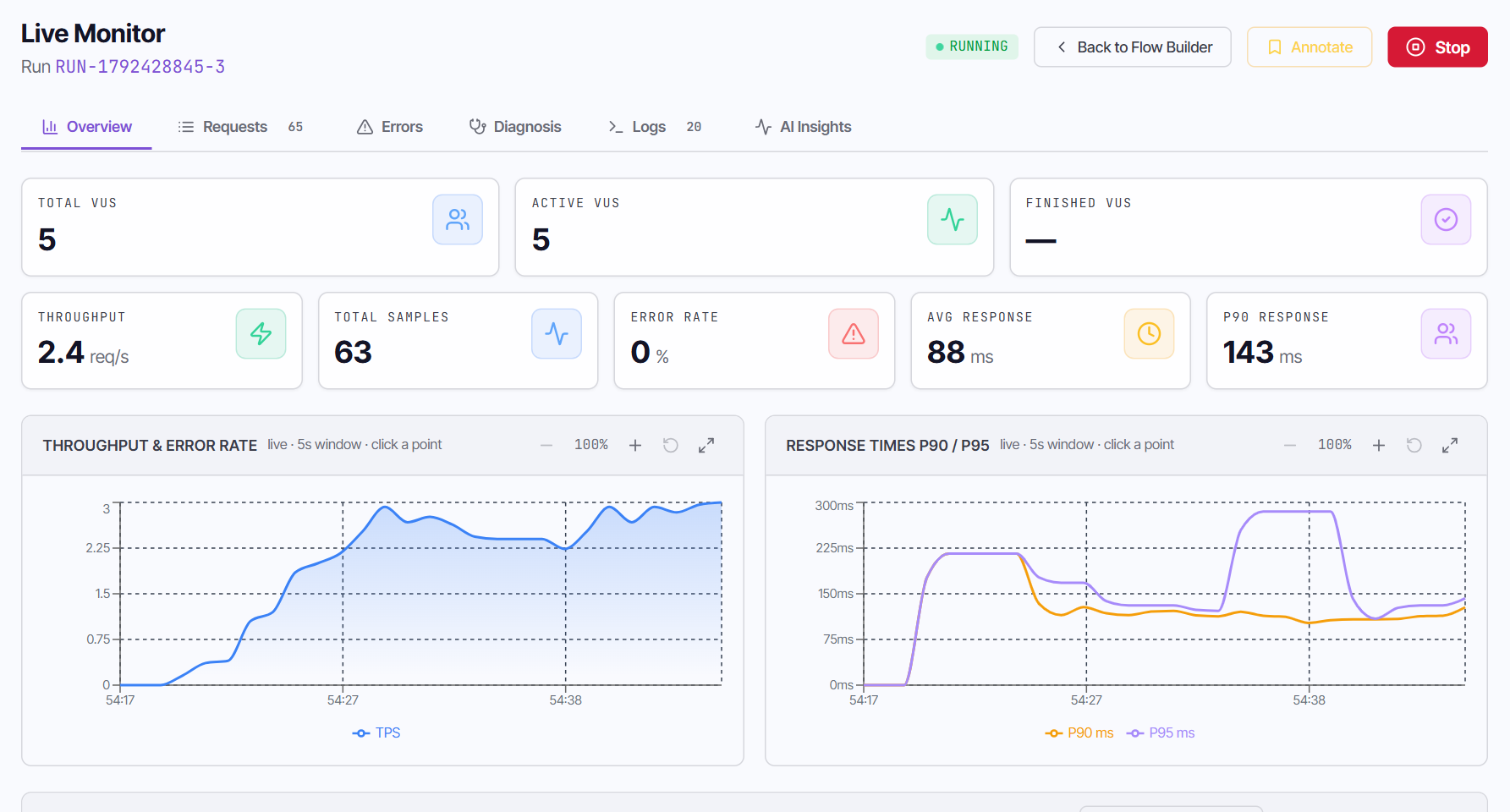
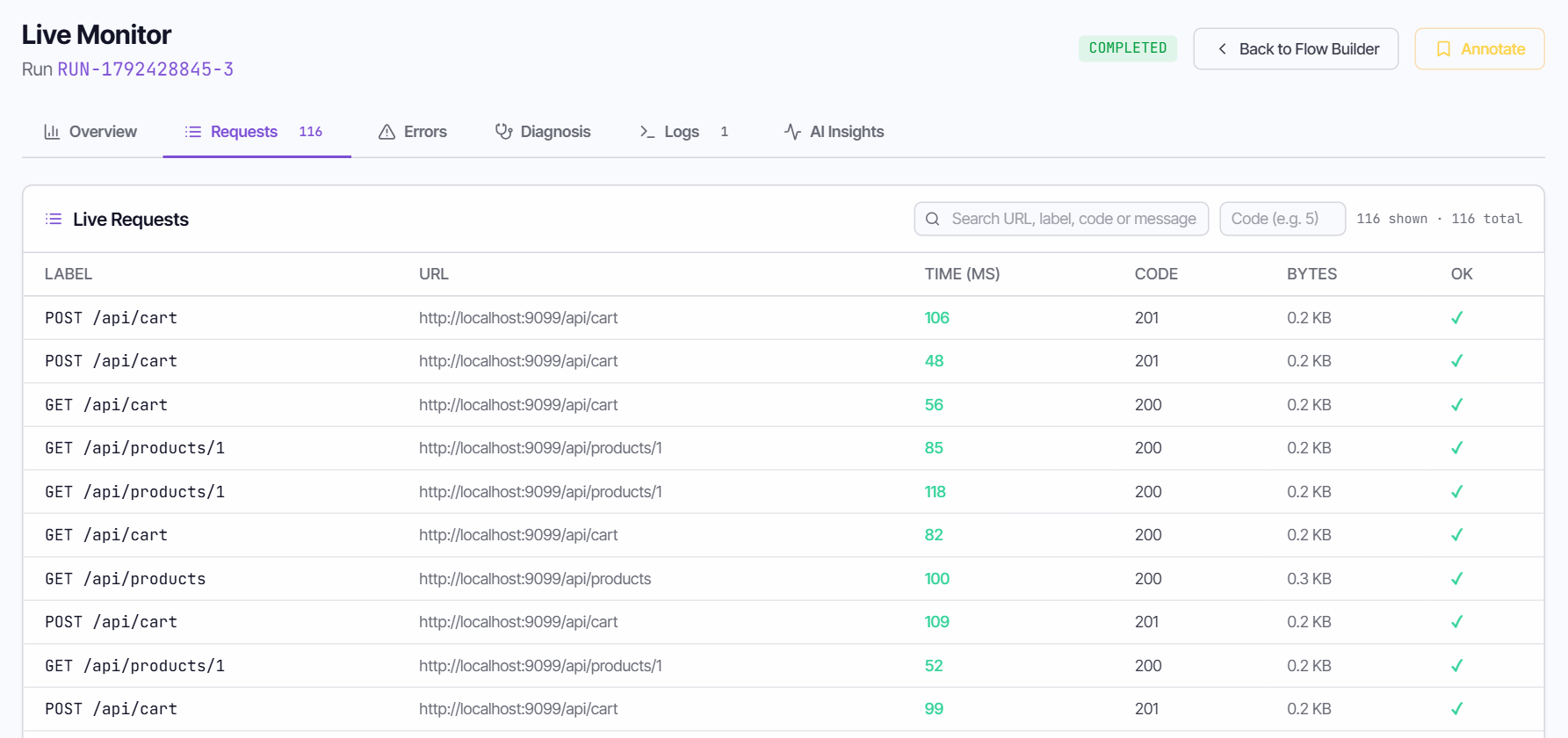
The monitor shows a RUNNING badge, virtual-user counts, and live throughput, total samples, error rate, average and P90 response time, with charts updating every few seconds. Use the tabs for the Requests list, Errors, Diagnosis, Logs and AI Insights.
Watch for errors and latency spikes
Keep an eye on Error Rate and Avg / P90 Response. A sudden spike in either means your server is struggling under load.
Read the results
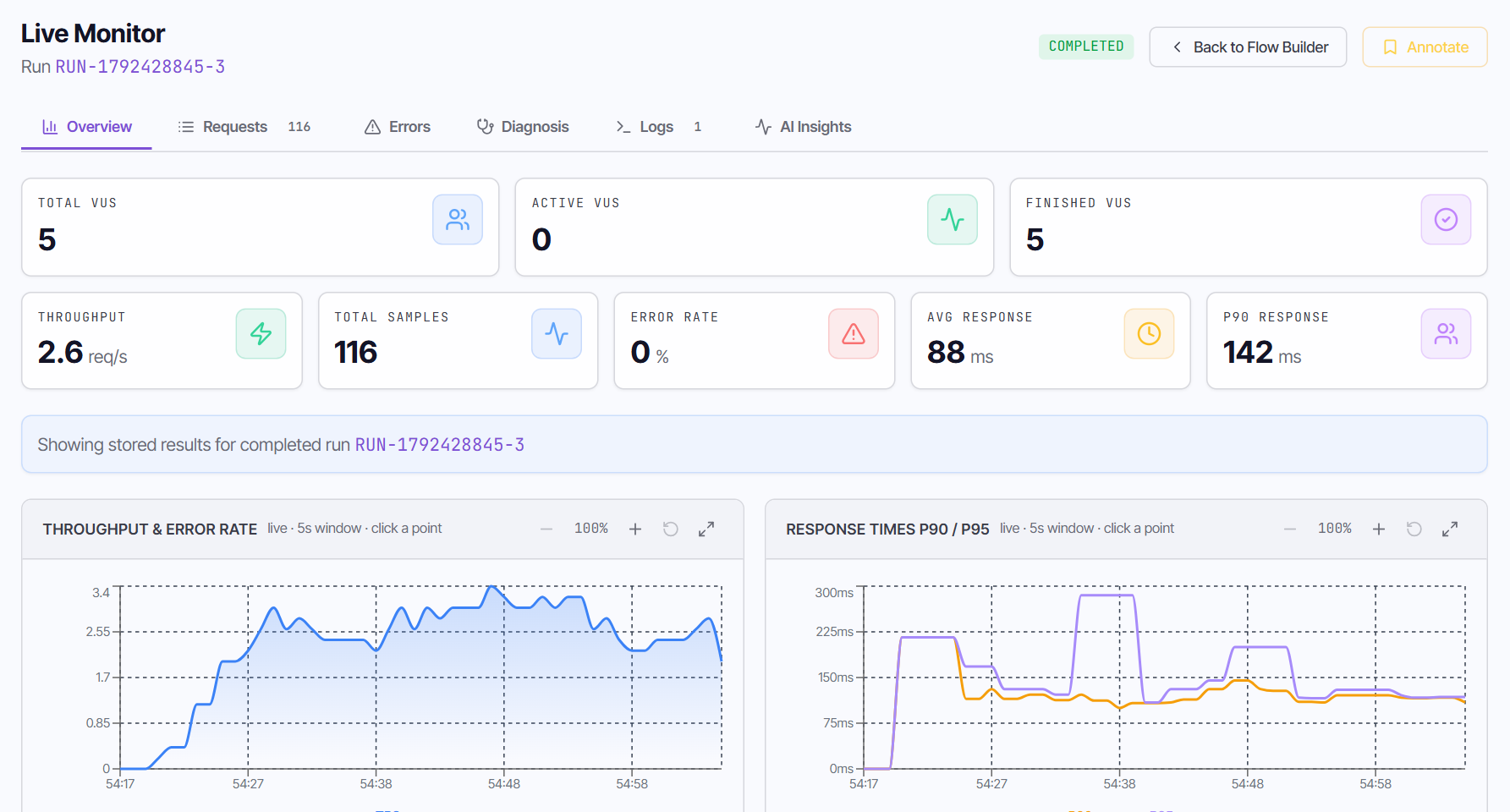
When the test finishes the status changes to COMPLETED and the results stay on the same page. Every run is also kept in Latest Runs (the Reports page) in the sidebar.
Review the finished run
The overview keeps the final KPIs and charts. The Requests tab lists every sample with its label, URL, time, status code, size and pass/fail mark.
Find it again in Latest Runs
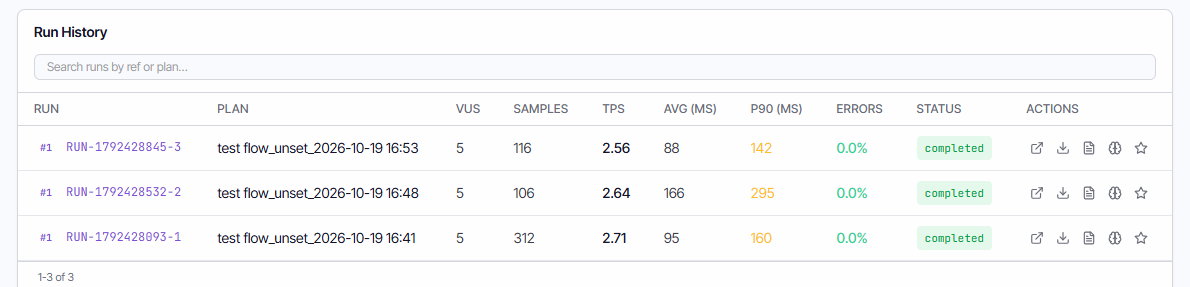
The run history table shows virtual users, samples, throughput (TPS), average and P90 response time, error rate and status for every run. The icons on the right open the report, download the raw results, export a PDF, open AI Insights, or mark the run as a baseline.
| Metric | What it means | Good threshold |
|---|---|---|
| Throughput (TPS) | Requests per second successfully handled. | Stable or growing; no sudden drops. |
| Avg Response | Mean response time across all requests. | Under 200 ms for API calls. |
| P90 / P95 / P99 | Response time that 90/95/99% of requests completed within. | P90 < 500 ms is a common SLA target. |
| Error Rate | % of requests that returned 4xx/5xx, failed an assertion or timed out. | Under 1%. Above 5% = investigate. |
Tips & best practices
Frequently asked questions
What browsers can I capture HAR from? +
Chrome, Edge, Firefox, and Safari all support HAR export. The UI differs slightly but the exported format is identical.
How big can a HAR file be? +
ProdLoad accepts HAR files up to the limit your administrator sets (25 MB by default). If your file is larger, ProdLoad tells you the exact limit; in that case open it in a text editor and remove response body content — the importer only needs headers, method, URL, and request body.
Can I import a Postman collection instead? +
Yes. In the Flow Builder open the Import menu and choose Postman collection (a Swagger / OpenAPI file works the same way). Export your collection as a v2.1 JSON file from Postman and import it directly.
What JMeter version does ProdLoad use? +
ProdLoad runs Apache JMeter 5.6.3.
The run won’t start: “Host is not verified” +
ProdLoad only runs load against hosts you have registered and verified. Open Hosts, add your target if it is missing, click Verify and follow the instructions, then select the host on the Flow Builder Load tab. See Step 7.
My test shows 100% errors — what's wrong? +
Usually one of: (1) Auth token expired — re-record the HAR while logged in and update the Authorization header. (2) Wrong base URL — make sure the target host in the Flow Builder steps points to your actual server. (3) Server not reachable — check that ProdLoad can reach your endpoint from its worker network.